How to make a mineral Moon
The Moon looks grey, but it isn't. Its rocks differ in colour by a few percent, and a careful boost in saturation makes those differences visible.
Updated 25 October 2026
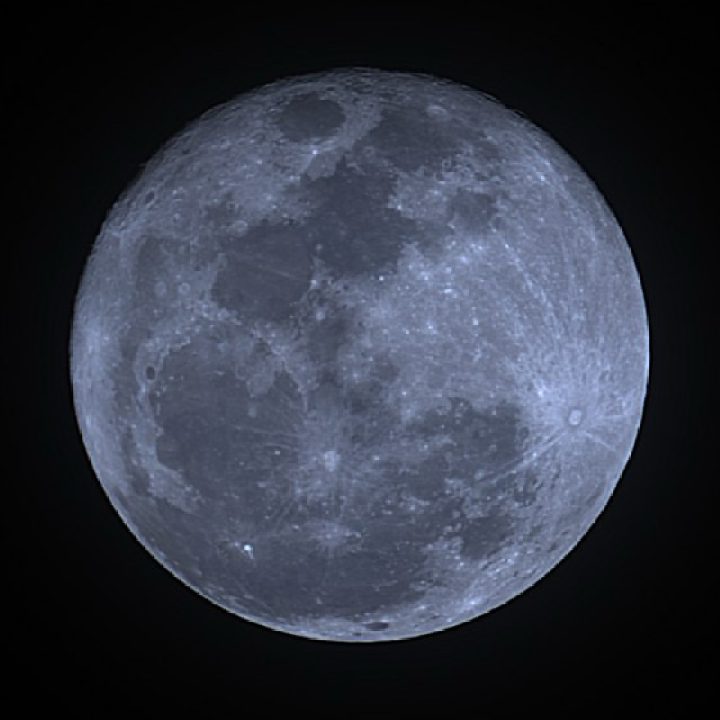
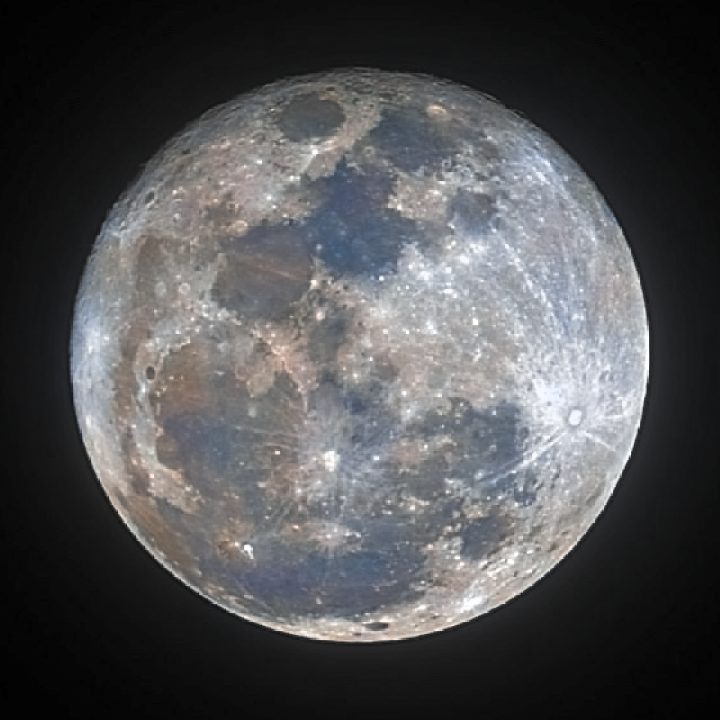
Are the colours real?
Yes, though much stronger than your eye could ever see them. The dark plains (maria) are old lava flows, and their chemistry shows as colour:
- Blue areas are basalts rich in titanium, as in Mare Tranquillitatis.
- Orange and brown areas are basalts poorer in titanium and richer in iron, as in Mare Serenitatis next door. The colour boundary between the two maria is one of the clearest features of a mineral Moon.
- The bright highlands are mostly neutral grey.
Spacecraft colour images show the same pattern. A mineral Moon from a backyard telescope is a real measurement, exaggerated so we can see it.
What makes a good mineral Moon
The colour differences are tiny, so the saturation boost is huge: ten times or more. That boost amplifies everything else in the photo too. A good result depends on three things.
1. Low noise
Noise in a single frame turns into confetti-coloured blotches once saturated. Start from a stack of a video or a stacked image from your telescope's app, not one frame. A 16-bit file (TIFF, FITS or PNG) is better than a JPEG, whose compression also adds colour blocks.
2. No colour fringe at the edge
The atmosphere bends blue light slightly more than red, so the Moon's edge often has a thin blue fringe on one side and a red one on the other. The lower the Moon, the stronger it is. Saturation turns that fringe into a bright coloured rim. Shoot when the Moon is high, and keep colour boosting away from the edge.
3. Colour that follows the terrain
Colour should change at the borders of maria and craters, not drift in smooth patches. Traditional workflows separate brightness and colour, denoise the colour heavily, then recombine, so the colour stays smooth while the detail comes from the sharp brightness channel.
The traditional workflow
Experienced imagers typically:
- stack a video in AutoStakkert! or a similar stacker
- sharpen with wavelets in RegiStax, or deconvolve in ImPPG
- in Photoshop, GIMP or PixInsight: separate colour from brightness, raise saturation in several steps, reduce colour noise, recombine
- fix the coloured edge by hand
That takes several programs and practice, and some of them run only on Windows.
Doing it in AstroSlide
- Open AstroSlide and add your Moon: a photo (JPEG, PNG, TIFF or FITS) or video clips to stack.
- The Moon is found, sharpened and given mineral colour automatically. Colour is boosted where the terrain changes, colour noise is smoothed, and the edge is protected from the coloured rim.
- Adjust colour strength, sharpening and brightness with sliders.
- Save in 16-bit TIFF or PNG for further editing, or JPEG for sharing.
It works with photos from a Seestar, Dwarf, phone on a telescope, or any camera.
Tips
- Phase: colour shows best around full Moon, when all the maria are lit. Near the terminator (the day–night line), long shadows dominate and colour is harder to judge.
- Height: a high Moon means steadier air, less colour fringe and truer colour.
- Don't overdo it: once the highlands turn colourful too, you are amplifying noise and white-balance errors, not geology.