Home › Guides › Mineral Moon without Photoshop
Mineral Moon without Photoshop
You can make a mineral Moon in Photoshop. You can also open one photo in AstroSlide, press Enhance and get the same kind of picture, free, in your browser.
Updated 23 November 2026
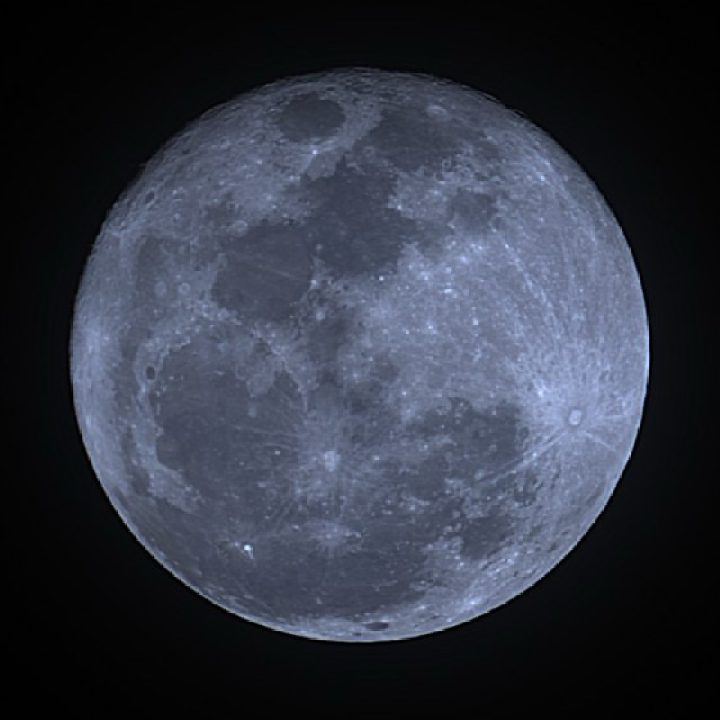
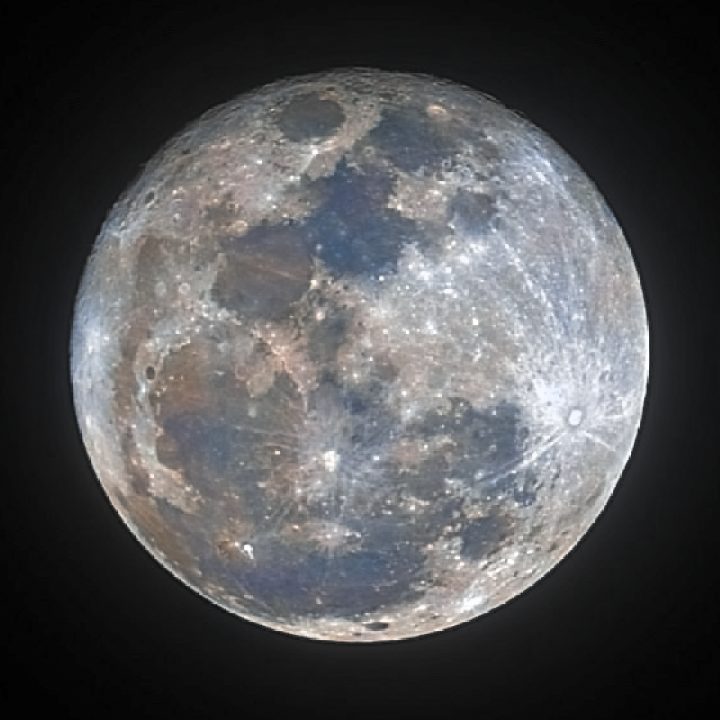
What does Photoshop do well?
Everything, if you know how. You split colour from brightness, raise the saturation a lot, smooth the colour noise, join the two back together, then paint out the coloured rim at the Moon's edge. You can mask any part you like and match the look to your own taste. No tool beats that control.
Where does it get in the way?
The colour in a Moon photo is only a few percent, so the saturation boost is huge, and it boosts the noise too. Each step has to be done carefully, by hand, on every photo. If you only want a mineral Moon from last night's clip, that is a lot of work.
How do you do it in AstroSlide?
- Open AstroSlide and add your Moon: a photo (JPEG, PNG, TIFF or FITS) or video clips, which it stacks first.
- Press Enhance and pick Subtle, Medium or Strong.
- Adjust Strength and Warmth if you want. They change in your browser, straight away.
- Download a JPEG, or a 16-bit TIFF or PNG to finish in Photoshop.
That last step is a good way to use both. AstroSlide does the boring part, and you keep the control.
Is it still a real mineral Moon?
Yes. AstroSlide boosts the colour that is in your photo and never adds any. A black-and-white photo stays black and white. The mineral Moon guide explains why the blue and orange are real.
What are the limits?
- It is made for Moon close-ups, not a small Moon over a landscape.
- A crescent has little colour to show.
- Haze and a single noisy frame give a weaker result. Stack a video if you can.